
Page under construction
How To Connect a Solid Pod
Scans are delivered to your own Solid Pod: personal online storage that you control. You need one to request scans and to take on scanning tasks. Connecting it takes a few minutes.
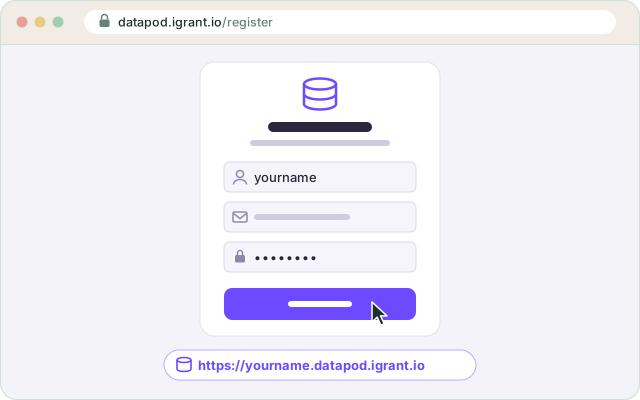
- Create a Pod
Register with a Pod provider, for example iGrant DataPod, or choose another one. Note the address you sign in at: with iGrant it is your own Pod address, such as https://yourname.datapod.igrant.io.
- Open the cloud folder settings
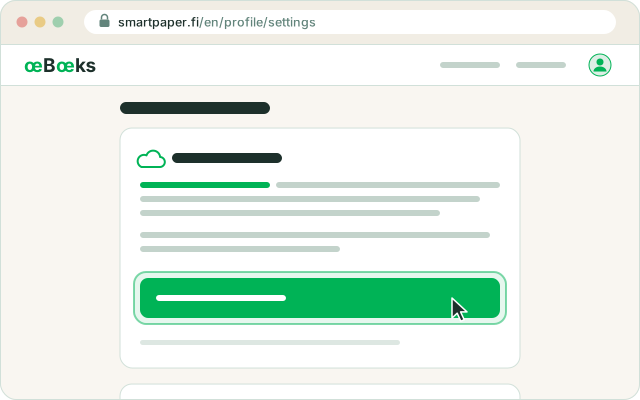
Log in to OpenEuropeBooks and open Settings from the account menu. In the “Cloud folder” card, press “Connect Solid Pod”. The “Connect your Solid Pod” window that appears after you log in leads to the same form.
- Enter where you sign in to your Pod
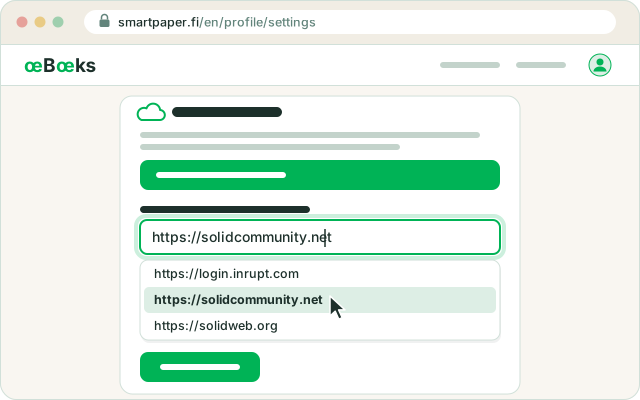
Type the address of your Pod's sign-in page or pick one from the list. With some providers it is the provider's address (https://solidcommunity.net, https://login.inrupt.com), with iGrant it is your own Pod address. Then press “Connect Pod”.
- Sign in at your provider and allow access
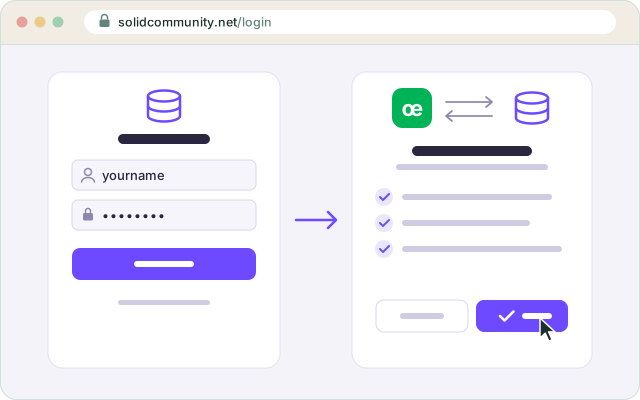
You are taken to your provider's website. Sign in with your Pod account and allow OpenEuropeBooks to access your Pod: the app saves scans there and deletes the files it no longer needs.
- Done
You come back to OpenEuropeBooks and see “Your Pod is connected”. The app creates an “OpenEuropeBooks” folder in your Pod, and the scans you order are saved there.
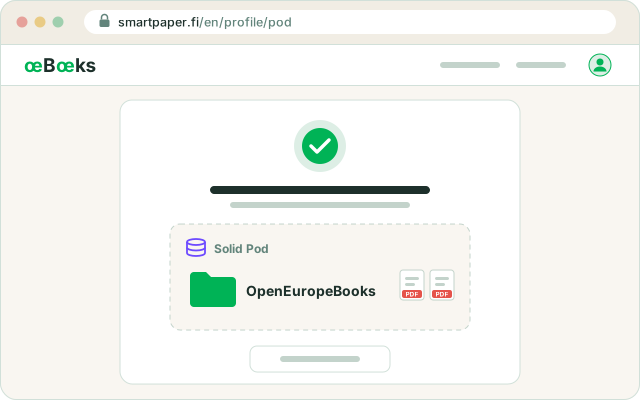
A Solid Pod works from your browser: saving a scan into it, or handing a scan in from it, happens while you keep the app open — you start it with a button.
How To Scan Books
- Download the DocScan App
- How to Scan a BookInstruction: here
- Open the DocScan app on your phone.
- Take clear photos of the book pages you want to scan.
- Crop and adjust the pages if needed.
- Export the scan as a PDF or image file.
- Then upload it to your task as described below.
- Upload Your Scan
- Open your task
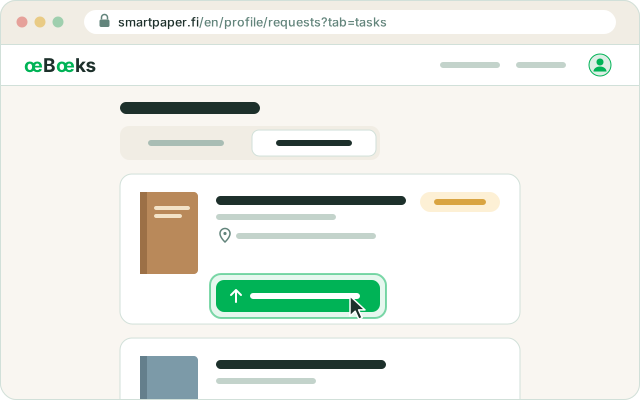
Log in to OpenEuropeBooks, open Your tasks and press “Deliver the scan” on the book you scanned.
- Upload the pages
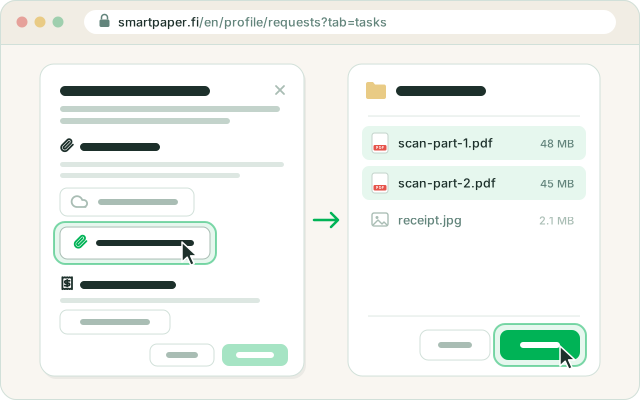
In the window that opens, press “Upload from this device” and choose the scan on your phone or computer: PDFs or a photo per page. Up to 50 MB per file: save a large book as several PDFs, for example 100 pages each, and choose them all. Keep the window open until the upload finishes.
- Add the library receipt and submit
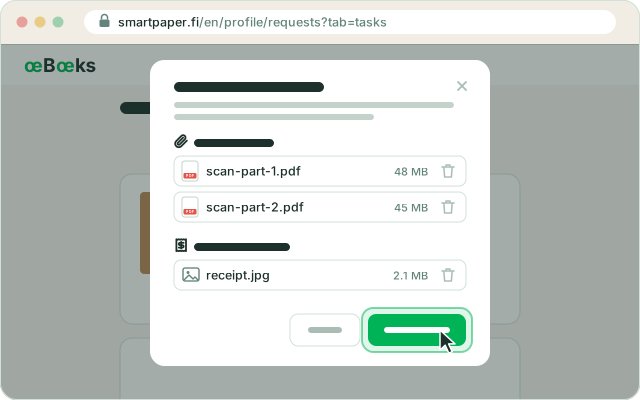
In the same window, use “Add receipt” to attach a photo of the library's slip (up to 10 MB). When the book and the receipt are both there, press “Submit for review”. The requester is notified.
Or hand in the pages from your Solid Pod
If the scan is already in your Pod, you can hand it in from there instead of uploading it from the device (step 2).
- Put the scan into your Pod
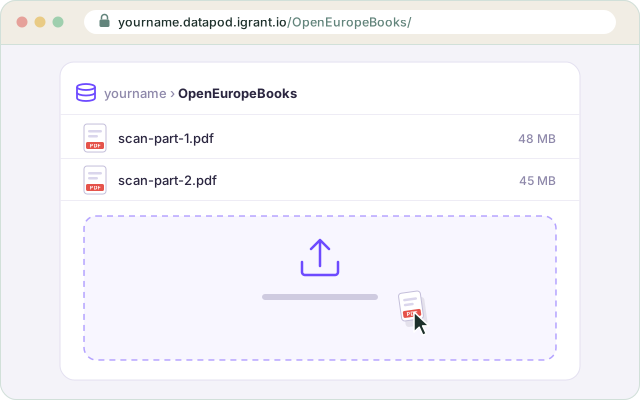
Open your Pod on your provider's website and put the scan into the “OpenEuropeBooks” folder (the app creates it when you connect your Pod): PDFs or a photo per page, loose or in a folder of their own. Up to 50 MB per file: save a large book as several PDFs, for example 100 pages each.
- Hand in the pages from your Pod
Press “Deliver the scan” on your task, then “Pick from my Pod”. Tick the files or folders in the “OpenEuropeBooks” folder and press “Hand in”. Keep the page open until the transfer finishes, then go back to your tasks, press “Deliver the scan” again and add the receipt (step 3).
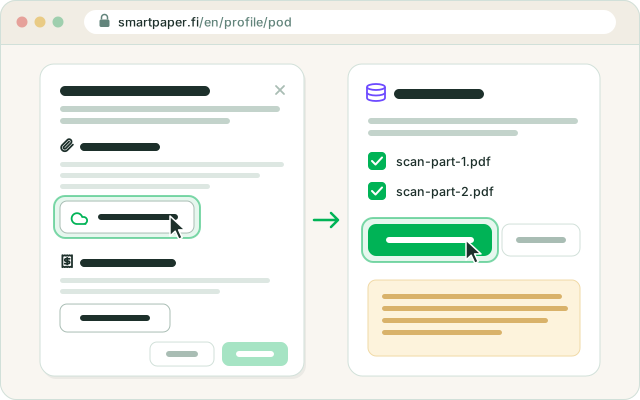
When the task is finished, the app asks you to delete the files handed in from your Pod: press “Delete from my Pod”. Pages uploaded from the device need nothing more.
- Open your task